
If you are a Windows user daily or use it for work, then you must use Power Toys. And this article will tell you why! There’re certain things that should be implemented directly to the operating system, but for some reason Microsoft decides not to. Here’s where the Power Toys shine!
What is Power Toys?
Microsoft Power Toys is a set of utilities that improve your Windows experience and increase your productivity. It’s an enormously powerful tool that will help you with certain tasks. And even though it’s released by Microsoft, it’s an open-source project that everyone can contribute to. Today I will focus on a few features of Power Toys that I use.
Advanced Paste
This feature is handy if you do a lot of copy and pasting. It allows you to paste content in the desirable format. For text you can choose between .txt file, markdown format, Json format, and plain text stripped out of any formatting.
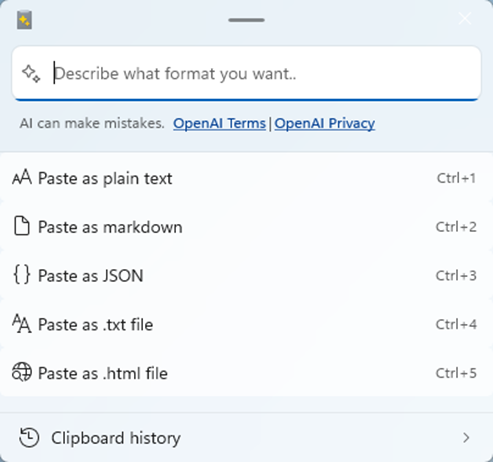
It also allows you to paste the text from a copied image or paste it as a .png file. It will handle converting the music and video to mp3 and mp4 format as you paste it. But that’s not all. If you wish, you can add Open AI API key and use AI to paste the content in any way imaginable. For example, as a Python code.
I use this feature to paste text without any formatting, and it was handy in multiple situations.
Command Palette
This is a new feature that is meant to replace the old Power Toys Run. It allows you to perform quick actions like opening apps, using shell commands, calculating something, searching files, changing active window, searching something on web, and more. This feature increases productivity and allows you to do some things faster without using the mouse.
Color Picker
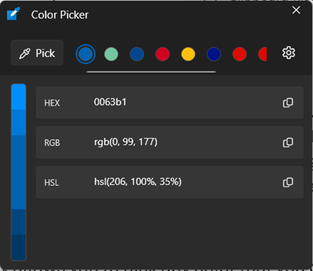
I use this feature a lot. It simply allows you to pick any color that you can see on the screen and get its hex, RGB, HSL, and many more formats. It’s useful for graphic designers, web designers and artists. Thanks to this you can pick a color from an app or image and use it on your website or in your Image Editing Software.
Text Extractor
This is a convenient way to copy text from anywhere on the screen, whether it’s an image, non-editable text, or part of the UI. Simply select the area where the text is and it will be copied to the clipboard, ready to be pasted wherever you want.
Always On Top
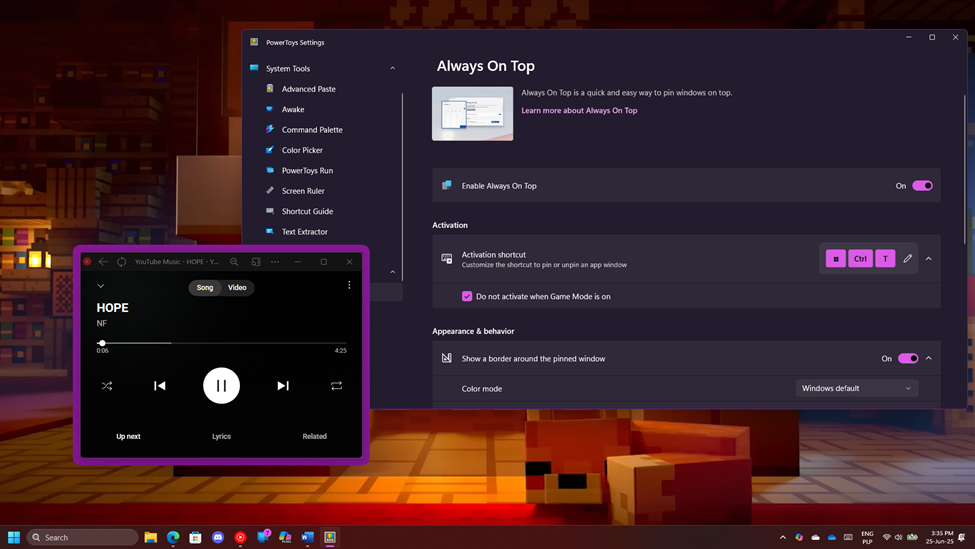
This simple feature lets you pin any window on top. That means the other windows won’t cover it. It’s useful when you want some document, image or even music player to be always visible and accessible.
Mouse Utilities
There’re a few features that focus on the mouse. One of them is Find My Mouse which will highlight your cursor when you click Left Control twice (or other way specified in this feature settings). You might recognize this feature from Windows Control Panel, but Power Toys offer more customization to behavior and appearance.
Another feature in this category is Mouse Highlighter which will highlight places where you pressed the mouse button. This might be useful when you’re presenting something or recording a tutorial. This way your audience will know what and when you click.
Advertisement
Mouse Without Borders
This is a nice feature when you’re using multiple devices at the same time. It allows you to share the same mouse pointer across up to four devices. But that’s not all. It also allows us to copy and paste between devices and send files up to 100MB.
File Explorer add-ons
This simple add-on adds previews and thumbnails to more file types, including text files, PDFs, vector graphics and 3D models. This way you can recognize files faster without opening them.
File Locksmith
Ever had a problem that you couldn’t delete or modify a file because it was used by a different process? File Locksmith allows you to check what process is using the file and free the file from its control. Thanks to that you will be able to gain control over the file and do what you want with it.
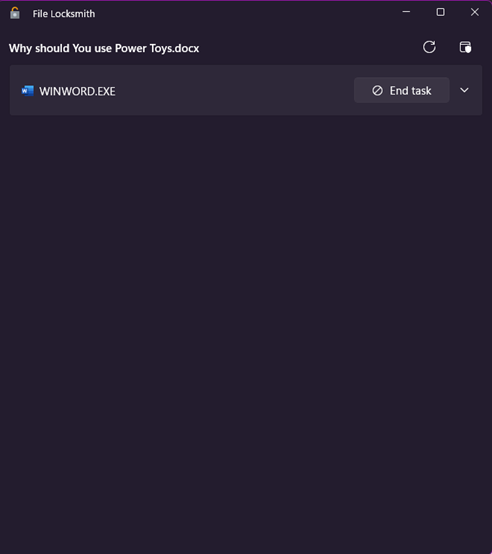
Image Resizer
This Power Toys feature allows you to resize images by right clicking them. You won’t have to open Image Editor to do such a simple task anymore.
Power Toys offers much more
I focused only on the features that I use, but Power Toys offers much more. If you want to see all the features, you can visit Power Toys Documentation or install the app from GitHub or Microsoft Store to test them all. Every feature can be enabled or disabled, and you can change the shortcut that opens them.
I encourage you to try it and you might find it an essential part of your operating system. It’s free and open source, so if you know how to code, you can implement new features and help this project shine even brighter.
Advertisement
Leave a Reply